Octo Onboarding Series (5): Cron in Practice — Scheduled Tasks That Run Whether You’re There or Not
/loopfrom the last post lives inside one conversation and disappears when it ends. This post covers the actually-persistent kind of scheduled task — one that survives a server restart and runs whether or not you’re at your computer.
The one precondition: cron tasks only fire while octo serve is running
octo serveCron is managed by a scheduler built into octo serve — if the process isn’t running, tasks don’t fire, and a schedule missed while it was down isn’t replayed on restart. So if you’re planning to rely on this for a daily digest, the server needs to be up long-term (on an always-on machine, for instance, or using the auto-start-on-login setup mentioned in the install post).
Let octo build it instead of hand-writing JSON
cron-task-creator is a built-in skill — just describe what you want:
Set up a daily task at 9am that summarizes the issues opened and PRs
merged in open-octo/octo-agent over the past 24 hours, lists the
highlights by priority, and sends it to my Feishu.
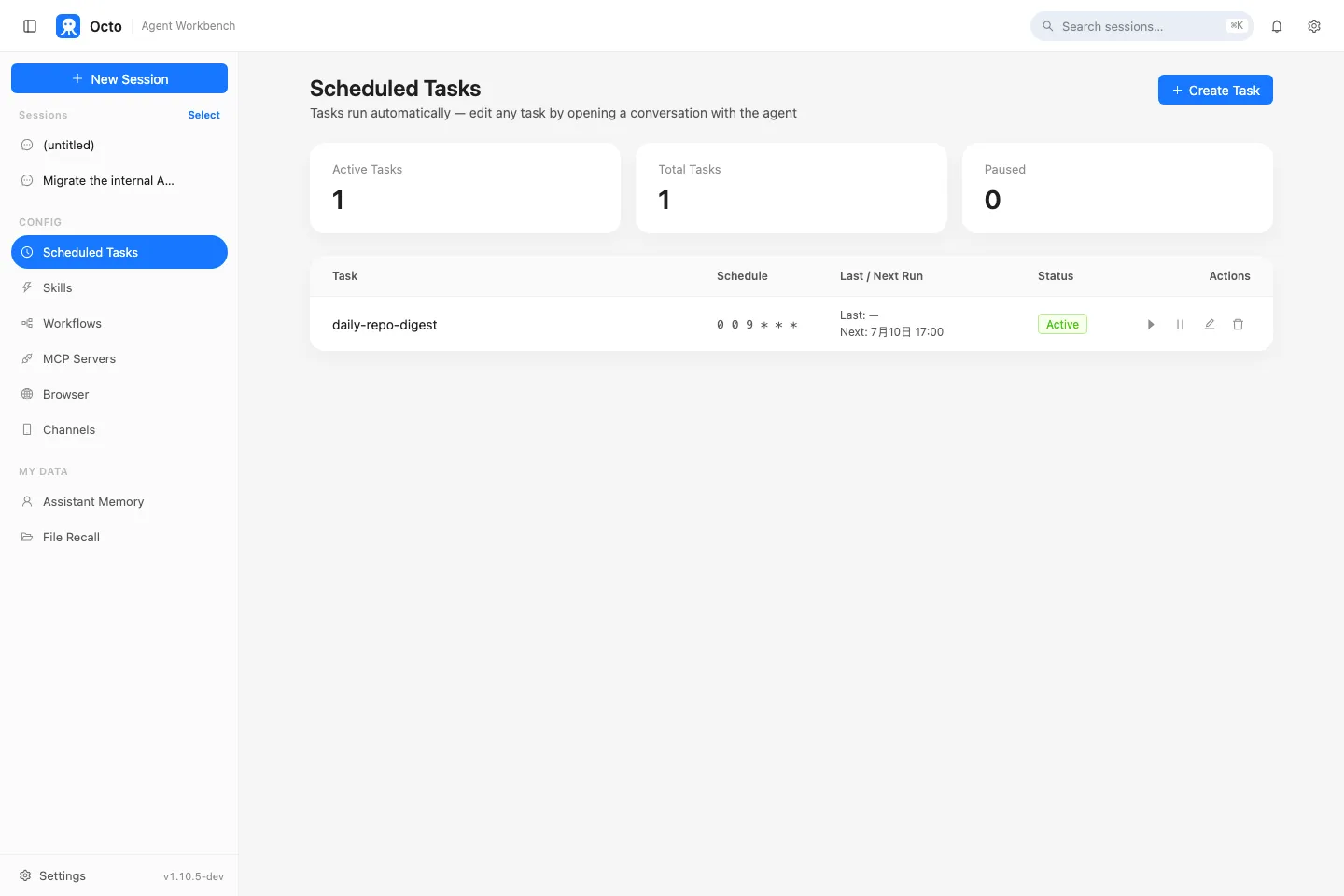
It walks through getting the cron expression, prompt, and notification target right. Once the task exists, the “Scheduled Tasks” panel in the web UI shows its status and next run time:
The same data is also reachable through the API directly (handy for bulk-creating tasks or scripting):
curl -s -X POST http://127.0.0.1:8088/api/tasks \
  -H 'Content-Type: application/json' \
  -d '{
    "name": "daily-repo-digest",
    "cron": "0 0 9 * * *",
    "prompt": "Summarize issues opened and PRs merged in open-octo/octo-agent over the past 24 hours, listing highlights by priority.",
    "notify": [{"platform": "feishu", "chat_id": "your Feishu chat id"}]
  }'
The panel and the API are the same data — a task created in the panel shows up via the API and vice versa.
Cron expressions: 6 fields, seconds first
Unlike a standard 5-field crontab line, octo’s scheduler adds a seconds field:
seconds minutes hours day-of-month month day-of-week| Want | Expression |
|---|---|
| Every day at 9:00 | 0 0 9 * * * |
| Every 30 minutes | 0 */30 * * * * |
| Weekdays at 18:30 | 0 30 18 * * 1-5 |
Descriptors like @daily, @hourly, @every 90m also work. Times run on the server’s local timezone.
The easiest mistake: it can’t see the conversation that created it
Every time a cron task fires, it runs in its own independent session — it has no access to whatever conversation you were having when you created it. The prompt has to be self-contained: what to summarize, where to look, who to send it to, all written into the prompt itself rather than assumed from context.
Just as important: give it an explicit stop condition. An open-ended prompt (something like “let me know if there’s anything I should look at”) keeps the model re-verifying and second-guessing until it hits the 30-minute hard timeout, instead of concluding “nothing to report” and finishing early. A scoped description like the one above — a specific time window and a specific output shape — doesn’t have that problem.
flowchart LR
    A["cron expression fires"] --> B["octo serve's scheduler"]
    B --> C["opens an independent session, runs the prompt"]
    C --> D["produces the digest"]
    D --> E["pushed to whatever's configured in notify"]
Testing it: use the panel’s run button, not a chat message
Every task in the panel has a “Run now” button, meant exactly for testing a freshly created task. Don’t trigger its run endpoint from inside a chat with octo — a run is a full agent turn (up to 30 minutes) and firing it from a conversation just blocks that conversation, while the actual output lands in the task’s own session where you can’t see it.
Next: wire all five pieces into one real thing
Install, Skills, MCP, Loop, Cron — all five pieces of this series are now on the table. The last post wires them together: a cron-triggered task that pulls data over MCP, generates an actual Excel weekly report with office-xlsx, and pushes it to an IM channel — a real automation that runs every week, starting from nothing.
Previous in the series: Octo Onboarding Series (4): Loop in Practice — Get octo to Watch Something for You Next in the series: Octo Onboarding Series (6): Putting It All Together — A Real, Running Weekly Report